A surprising amount of everyday computer work no longer requires traditional desktop software. If you need to write an article, remove an image background, compress a photo, translate a document, edit a PDF, or create social media graphics, there is often a browser-based tool that can handle the job.
That shift is especially useful for people working from shared computers, budget laptops, tablets, or smartphones. Instead of downloading a large application, you can open a website, complete the task, and close the browser when you are finished.
The rise of AI Tools has made browser-based productivity even more interesting. Modern online services can help with writing, research, image creation, editing, translation, and other repetitive tasks. At the same time, traditional online utilities remain valuable because they solve simple problems quickly without requiring technical knowledge.
This guide looks at 10 useful free online tools that cover different needs. Some are AI-powered, while others are straightforward utilities. The goal is not to claim that every tool is universally the best option, but to explain where each one fits, what it does well, and what limitations you should consider.
Why Browser-Based Tools Are So Useful
Installing software is not always practical. You may be using a work computer without administrator privileges, a school computer with restrictions, or a phone with limited storage. Even on a personal computer, installing a separate application for every small task can become inconvenient.
Online tools solve part of that problem by moving the application into the browser.
A browser-based tool can offer several advantages:
- No traditional desktop installation
- Access from multiple devices
- Easier sharing and collaboration
- Automatic updates on the provider’s side
- Useful functionality for quick, one-off tasks
- Less dependence on a powerful computer
There are trade-offs, of course. Most online services require an internet connection, and some features may be locked behind paid plans. Privacy also deserves attention when uploading sensitive documents, photographs, or business information.
For that reason, “free” should not automatically mean “use it for everything.” Check what information you are uploading and understand the provider’s terms before using an online service for confidential material.
1. ChatGPT — An AI Assistant for Writing, Research, and Everyday Tasks
ChatGPT is one of the most versatile browser-based AI Tools available to general users.
The free version can be used for everyday conversations, writing assistance, learning, planning, web research, file analysis, and image-related tasks, although free usage comes with limits. OpenAI’s current information also shows that the free plan includes access to web search, file and image interactions, writing assistance, and limited image generation.
For a blogger, ChatGPT can be useful at several stages of the content process. You might use it to brainstorm article angles, organize research questions, explain a technical concept, improve a rough draft, generate headline ideas, or turn complicated notes into a clearer structure.
A content creator could also use it to develop video ideas, social media concepts, product descriptions, or email drafts. Developers can use conversational AI to explain code, identify potential bugs, or discuss implementation approaches.
Why it is useful
ChatGPT stands out because it can handle many different types of work in one interface. You do not need a separate application for every small task.
For example, a simple workflow could look like this:
Idea → research → outline → draft → revision → final content
The important point is that AI should support the user’s judgment rather than replace it. Generated information can be incomplete or incorrect, so important facts still need to be checked.
Limitations
The free plan has usage limitations, and availability of specific models and features can change. AI output also requires human review, particularly for factual, financial, legal, medical, or technical content.
Best for: Writers, students, bloggers, developers, freelancers, researchers, and general users.
2. Canva — Online Design Without Traditional Graphic Software
Canva is a browser-based design platform aimed at users who want to create visual content without mastering professional design software.
The free version provides templates and tools for creating presentations, social media graphics, documents, videos, and other designs. Canva describes its free product as a drag-and-drop design environment with free templates, photos, fonts, and collaboration features.
This makes Canva particularly useful for small businesses and content creators. A blogger can create a featured image, a freelancer can prepare a presentation, and a local business can produce social media graphics without installing a large design application.
Canva has also incorporated AI-powered editing features. Its AI photo editor can assist with tasks such as object removal and background editing, although some advanced capabilities are reserved for paid users or limited free access.
Practical example
Imagine you publish a technology article and need a featured image. Instead of opening professional photo-editing software, you can select a template, replace the imagery, adjust typography, and export the result directly from the browser.
That simplicity is one of Canva’s biggest strengths.
Limitations
Free and premium assets are mixed throughout the platform, so users need to pay attention to which elements require a subscription. Advanced AI features can also have different access limits.
Best for: Bloggers, social media managers, students, marketers, small businesses, and beginners.
3. Photopea — A Powerful Browser-Based Photo Editor
Photopea is particularly interesting for users who want more advanced image editing without installing Photoshop or another desktop editor.
Unlike a simple image-resizing website, Photopea provides professional-style functionality including layers, masks, blending, cropping, resizing, and other editing capabilities. It also supports PSD files. Photopea states that the editor operates directly in the browser and processes files locally on the device rather than requiring them to be uploaded to its servers.
That local-processing approach is especially noteworthy from a privacy perspective.
For example, if you need to open a PSD file on a computer where Photoshop is not installed, Photopea can provide a practical browser-based alternative.
Why creators may like it
Photopea sits somewhere between basic online image tools and full professional desktop software. It can be useful for:
- Editing thumbnails
- Preparing website graphics
- Working with PSD files
- Creating simple composites
- Resizing images
- Removing or modifying image elements
- Preparing marketing materials
Limitations
Its interface can feel more complicated than beginner-oriented tools such as Canva. Users unfamiliar with layers and masks may need some time to learn the workflow.
Best for: Designers, developers, bloggers, photographers, and users who need more advanced image editing.
4. Remove.bg — Quickly Remove Image Backgrounds
remove.bg focuses on one job: removing image backgrounds.
Its AI-powered system automatically separates the foreground from the background. The service describes its background remover as an automatic tool designed to isolate people, products, animals, cars, and other subjects.
This can save a considerable amount of time compared with manually selecting a subject in a conventional image editor.
For an online seller, for example, you might photograph a product, upload the image, remove the original background, and then place the product on a clean white or customized backdrop.
The same technique works for profile photos, marketplace listings, promotional graphics, and website assets.
Why it is useful
Background removal is one of those tasks that sounds simple but can become tedious when done manually. Hair, clothing edges, transparent objects, and irregular shapes can require careful editing.
AI makes the first pass much faster.
Limitations
Free access and output options may differ from paid plans, so users who need high-resolution commercial assets should check the current terms before relying on the service for large production workflows.
Best for: E-commerce sellers, marketers, bloggers, content creators, and social media users.
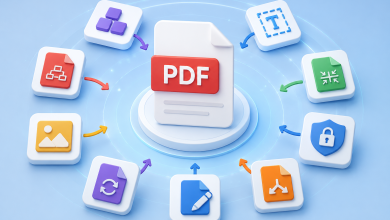
5. iLovePDF — A Practical Online PDF Toolkit
iLovePDF is designed for people who regularly encounter PDF files but do not want to install dedicated PDF software.
The service provides browser-based tools for merging, splitting, compressing, converting, rotating, editing, and managing PDF documents. Its official website currently describes many of these tools as free to use, although individual usage limits and advanced capabilities can vary.
This is useful for everyday tasks such as combining several documents into one PDF before sending them to a client or reducing a large file before uploading it to a website.
Example workflow
Suppose you have three PDF documents:
- A proposal
- A pricing document
- A company profile
Instead of opening desktop PDF software, you can upload the files to the merge tool, arrange their order, and create one document.
You can also compress PDFs when a website has a file-size restriction.
Limitations
Users should be cautious when uploading confidential contracts, identification documents, financial records, or other sensitive information to any third-party online service. For sensitive files, check the provider’s privacy and retention policies before uploading.
Best for: Freelancers, students, office workers, businesses, and anyone working with PDFs.
6. Google Docs — Free Online Writing and Collaboration
Google Docs remains one of the simplest ways to write and collaborate without installing a traditional word processor.
Google Docs allows users to create and edit documents through a browser, share them with other people, and collaborate in real time. Google also provides a free personal option.
For writers and bloggers, Google Docs can serve as a central workspace for drafts. Instead of saving multiple copies such as article-final.docx, article-final-2.docx, and article-final-real-final.docx, you can maintain a single cloud-based document and track changes.
It is also useful for teamwork. A writer can prepare an article while an editor adds comments and suggestions without sending files back and forth.
Google Docs includes smart writing assistance, and some Workspace plans now offer additional AI capabilities through Gemini. However, the availability of AI features depends on the account and plan.
Limitations
It is primarily a document editor rather than a dedicated AI writing platform. Some advanced AI capabilities are not included in the basic free experience.
Best for: Writers, bloggers, students, teams, freelancers, and office workers.
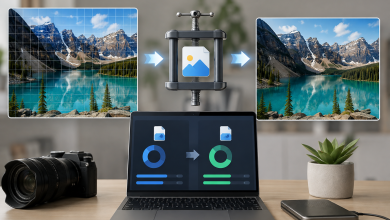
7. TinyPNG — Compress Images Before Uploading Them
TinyPNG is a straightforward tool that addresses a common web problem: large image files.
TinyPNG uses compression techniques to reduce the size of supported image formats such as PNG, JPEG, WebP, AVIF, and others. The company explains that its optimization process can reduce file size while attempting to keep visual changes nearly invisible.
This is especially useful for bloggers and website owners.
A 4 MB photograph may look fine on a desktop computer, but repeatedly serving large images can make a webpage heavier than necessary. Compressing images before uploading them can help reduce unnecessary file weight.
A simple content workflow
For a blog post:
Original image → resize if necessary → compress → upload → add descriptive alt text
The compression step takes only a few seconds.
TinyPNG also states that uploaded images are retained for a limited period before deletion, but users should still review current privacy information before uploading confidential material.
Limitations
Compression is not a replacement for proper image sizing. If an image is unnecessarily large in its dimensions, resizing it before compression can be more effective than simply compressing the original.
Best for: Bloggers, developers, website owners, photographers, and content creators.
8. Grammarly — Online Writing Assistance
Grammarly is another useful browser-based option for people who write frequently in English.
Its free plan provides basic writing assistance, including spelling and grammar support, while paid plans add more advanced rewriting and writing capabilities. Grammarly’s current pricing information lists a $0 Free plan and describes features such as spelling and grammar assistance and writing-tone feedback.
For bloggers and freelancers who communicate with international clients, a writing assistant can be useful for catching obvious mistakes before publishing or sending an email.
It is particularly helpful when English is not your first language, although experienced English writers can benefit from a second layer of proofreading as well.
How to use it effectively
Do not treat every suggestion as an instruction.
Automated writing assistants sometimes prefer wording that is technically correct but does not match your intended voice. Human judgment should remain the final decision.
For example, a casual social media post and a formal business proposal should not necessarily sound the same.
Limitations
The free version is deliberately more limited than the paid plans. Some advanced rewriting, tone controls, and other features require an upgrade.
Best for: Bloggers, students, freelancers, professionals, and anyone writing regularly in English.
9. Google Translate — Fast Translation for Everyday Use
Google Translate is one of the most familiar browser-based language tools.
It can translate text and supports additional modes involving images, documents, and websites. The current web interface supports document uploads such as DOCX, PDF, PPTX, and XLSX.
For everyday communication, it can be extremely convenient.
A freelancer might receive a message in another language, translate it quickly, and then prepare a response. A traveler can use it to understand signs or basic information. A website owner can use translation as a starting point when researching international content.
Google Translate also supports a large range of languages, making it useful for situations where you need quick access to a language you do not speak.
The important limitation
Machine translation should not automatically be treated as publication-ready.
Legal contracts, medical information, technical documentation, and professional marketing copy can contain nuances that require human review. A translation can be grammatically understandable while still missing cultural context or the intended meaning.
Best for: Travelers, students, researchers, freelancers, website owners, and everyday communication.
10. DeepL — AI-Powered Translation and Writing Assistance
DeepL Translator is another strong option for multilingual work.
DeepL provides AI-powered translation for text and documents and supports formats including PDF, Word, and PowerPoint. Its website also offers separate language-related products, including DeepL Write.
One reason to keep DeepL in your toolkit is that translation quality can vary considerably depending on the language pair and type of text. Comparing results between translation systems can sometimes reveal awkward wording that would otherwise be overlooked.
For example, if you are preparing an English-language article from Indonesian research notes, you can translate the material and then manually revise the English rather than publishing the raw machine translation.
DeepL vs. Google Translate
The two services overlap, but you do not necessarily need to choose one permanently.
Google Translate is convenient when you need broad language coverage and different translation modes. DeepL can be useful when you want another AI translation engine and more language-focused writing functionality.
Limitations
Free access has limits, and advanced business capabilities are offered through paid products. DeepL itself distinguishes its free translator from its broader professional platform.
Best for: Writers, translators, businesses, students, marketers, and multilingual content creators.
Quick Comparison: Which Tool Should You Use?
| Tool | Best For | Free Access | Main Strength |
|---|---|---|---|
| ChatGPT | AI assistance | Yes, with limits | Writing, research, ideas, analysis |
| Canva | Graphic design | Yes | Easy visual creation |
| Photopea | Advanced image editing | Yes | Layers, PSD, professional editing |
| remove.bg | Background removal | Yes, with limitations | Fast AI subject isolation |
| iLovePDF | PDF tasks | Yes, with limits | PDF conversion and management |
| Google Docs | Writing and collaboration | Yes | Real-time document editing |
| TinyPNG | Image compression | Yes | Simple image optimization |
| Grammarly | English writing | Yes | Grammar and spelling assistance |
| Google Translate | General translation | Yes | Broad translation utility |
| DeepL | AI translation | Free option available | Language-focused translation |
The word free deserves some clarification. A free online tool may provide a genuinely useful free tier while limiting file sizes, usage volume, resolution, AI generations, or advanced features. Those limits can change as companies update their products.
For occasional personal use, that may not matter at all. Someone processing hundreds of files every day, however, may eventually need a paid plan.
How AI Tools Fit Into an Online Productivity Workflow
The biggest advantage of modern online tools is not necessarily any single service. It is the ability to combine several small tools into a workflow.
Consider a blogger preparing a technology article.
First, an AI assistant such as ChatGPT can help brainstorm ideas and organize research. The writer can then create the article in Google Docs, using Grammarly to identify writing issues.
Next, Canva can be used to create the featured graphic. If the design requires a product image with a transparent background, remove.bg can handle that particular task. TinyPNG can then reduce the final image size before it is uploaded to the website.
That workflow could look like this:
AI research → writing → editing → design → background removal → compression → publication
None of those steps necessarily requires installing a traditional desktop application.
The same principle applies to small businesses. A business owner could use AI Tools for drafting product descriptions, Canva for promotional graphics, iLovePDF for documents, and translation tools for communicating with overseas customers.
The goal is not to use as many tools as possible. The goal is to use the smallest practical collection of tools that removes unnecessary work.
Free AI Tools vs. Traditional Online Tools
There is an understandable tendency to describe everything as an AI tool now. But not every useful online service needs artificial intelligence.
TinyPNG, for example, solves image optimization very effectively without requiring you to have a conversation with an AI assistant.
Google Docs is valuable because of collaboration and document management. Photopea is useful because it provides sophisticated image-editing capabilities in a browser.
AI becomes particularly valuable when the task involves interpretation, generation, transformation, or natural-language interaction.
A good productivity stack therefore combines both categories.
Use AI when you need to:
- Brainstorm ideas
- Summarize information
- Generate a first draft
- Analyze text
- Create or modify images
- Translate or rewrite content
- Explore possible solutions
Use conventional online utilities when you need to:
- Compress a file
- Merge PDFs
- Edit an image precisely
- Collaborate on a document
- Convert a file
- Perform a simple calculation or transformation
That distinction can prevent people from using an unnecessarily complicated AI workflow for a task that a simple online utility can complete in seconds.
What to Check Before Using a Free Online Tool
Convenience should not eliminate common sense.
Before uploading a file to an online service, consider what the file contains. A public blog image is very different from an unpublished business contract or a document containing personal information.
Here are a few practical questions to ask:
Does the tool require an account?
Some services can be used immediately, while others require registration. An account may provide additional features but also means storing information with the provider.
Are there usage limits?
A “free” plan may have limits on daily usage, file size, resolution, storage, or AI generations.
Does the tool upload your files?
This matters for privacy. Some browser applications process files locally, while others send them to remote servers.
Photopea, for example, states that its files remain on the user’s device during editing.
Is the output good enough?
Free does not always mean low quality, but it also does not guarantee professional results. Always inspect exported images, translated documents, compressed files, and AI-generated content before publishing.
Will the tool remain free?
Online services can change their pricing and feature structures. A tool that offers generous free access today may introduce tighter limits later.
For that reason, it is better to build flexible workflows rather than becoming completely dependent on one service.
Common Mistakes When Using Online Tools
One common mistake is choosing a tool based solely on its feature count.
More features do not necessarily mean better productivity.
If you need to resize one image, a simple browser tool may be better than opening a complicated editor. If you need to remove one background, an automated background remover may be faster than manually creating selections.
Another mistake is uploading sensitive files without checking privacy information.
A third is assuming AI-generated output is automatically accurate. AI Tools can dramatically speed up brainstorming and production, but important facts still need verification.
Finally, users sometimes sign up for too many services. Ten tools can quickly become ten accounts, ten passwords, and ten different interfaces.
A better strategy is to start with a small core toolkit and add another service only when it solves a recurring problem.
A Simple Free Online Toolkit for Different Users
Different users need different combinations.
For bloggers
A practical combination would be:
ChatGPT + Google Docs + Grammarly + Canva + TinyPNG
This covers brainstorming, writing, proofreading, graphics, and image optimization.
For content creators
Try:
ChatGPT + Canva + remove.bg + TinyPNG
This combination focuses on ideation and visual content production.
For freelancers
A freelancer might benefit from:
ChatGPT + Google Docs + iLovePDF + Grammarly + DeepL
That combination covers proposals, documents, writing, communication, and multilingual work.
For developers
Developers may find:
ChatGPT + Photopea + TinyPNG + Google Docs
useful for a mixture of technical problem solving, documentation, image editing, and web assets.
The important thing is not to copy someone else’s toolkit exactly. Build one around the tasks you perform repeatedly.
Are Free Online Tools Good Enough for Professional Work?
Sometimes, yes.
A free online tool can be perfectly adequate for a small business owner who occasionally needs to compress an image or create a social media post.
Likewise, a freelance writer may be able to do most day-to-day work using free browser-based writing and AI Tools.
The situation changes when usage becomes heavy. Professional users may need higher limits, team collaboration, advanced security controls, larger file sizes, automation, API access, or guaranteed support.
At that point, paying for software can make economic sense.
The right question is therefore not “Is free software better than paid software?”
It is:
Does the free version provide enough capability for the work I actually need to do?
If the answer is yes, there is little reason to pay simply for the sake of having a premium subscription.
Frequently Asked Questions
Are online tools really free?
Many browser-based services offer free plans or free functionality, but the exact limits vary. Some restrict advanced features, usage volume, file size, resolution, or storage. Always check the current pricing page before depending on a tool for a large workflow.
Can I use AI Tools without installing software?
Yes. Many modern AI services operate directly through web browsers. ChatGPT, for example, provides a web-based free experience with features for conversation, writing, web search, files, images, and other tasks, subject to usage limits.
Which online tool is best for bloggers?
There is no single answer. A practical combination is often more useful than one “best” tool. Google Docs can handle writing, ChatGPT can assist with ideas and research, Canva can create graphics, Grammarly can help with English proofreading, and TinyPNG can optimize images.
Are browser-based tools safe?
Safety depends on the specific service and the information you provide. Before uploading sensitive documents, review the provider’s privacy policy, data-retention practices, and security information. Avoid uploading confidential material to services you do not trust.
Do I need a powerful computer to use online tools?
Not always. Many browser-based services perform much of their processing remotely, which can make them accessible from relatively modest devices. However, browser performance still depends on the specific application, file size, internet connection, and device hardware.
Are AI tools better than traditional software?
Not necessarily. AI is excellent for tasks involving language, generation, analysis, and automation, while traditional tools can be better for precise editing and predictable workflows. The most effective setup often combines both.
Can online tools replace desktop software completely?
For some users, yes. A casual designer, blogger, student, or freelancer may be able to perform most everyday tasks in a browser. Professionals with demanding workflows may still need desktop applications for advanced editing, offline work, specialized file formats, or performance-intensive tasks.
Conclusion
The modern browser is much more than a way to visit websites. It has become a practical software environment where users can write, design, edit images, process PDFs, translate documents, optimize media, and work with AI without installing a large collection of applications.
The 10 tools covered here serve different purposes. ChatGPT is useful for AI-assisted work, Canva simplifies design, Photopea provides advanced image editing, and remove.bg handles background removal. iLovePDF helps with document tasks, while Google Docs supports writing and collaboration. TinyPNG handles image optimization, Grammarly assists with English writing, and Google Translate and DeepL help with multilingual work.
You do not need all ten.
Start with the two or three that solve your most frequent problems. If you regularly create content, a combination of AI Tools, writing tools, design software, and image optimization can eliminate a surprising amount of unnecessary work.
The broader lesson is simple: before installing another piece of software, check whether a reliable browser-based alternative can do the job just as well.
Suggested Internal Link Opportunities
Anchor Text: Best AI Tools for Students
Suggested Topic: A practical guide to free AI productivity tools for studying, research, writing, and organization.
Anchor Text: Best AI Tools for Content Creators
Suggested Topic: AI writing, image generation, video creation, scripting, and social media tools for creators.
Anchor Text: How to Compress Images Without Losing Quality
Suggested Topic: A detailed guide to image compression, WebP, JPEG, PNG, and website performance.
Anchor Text: Best Online PDF Tools
Suggested Topic: A comparison of free browser-based tools for merging, splitting, compressing, converting, and editing PDFs.
Anchor Text: AI Tools for Small Businesses
Suggested Topic: Affordable AI and automation tools for marketing, customer communication, content creation, and daily operations.
Sources to Verify
The following official sources should be checked again immediately before publication because software features, free-plan limits, and pricing can change:
- OpenAI / ChatGPT official information — current free-plan capabilities and AI features.
- Canva official website — free design features and AI editing capabilities.
- Photopea official website — browser-based editing and local file processing.
- remove.bg official website — background-removal functionality and current free limitations.
- iLovePDF official website — current PDF tools and free-use limitations.
- Google Docs official information — free personal access, collaboration, and current features.
- TinyPNG official website — supported formats, compression, and privacy information.
- Grammarly official pricing — current free and paid features.
- Google Translate official website — current translation modes and supported document types.
- DeepL official translator — current translation capabilities and free-tier availability.